Showing Off My Own Tool's UI — PrismDesk's Device Preview
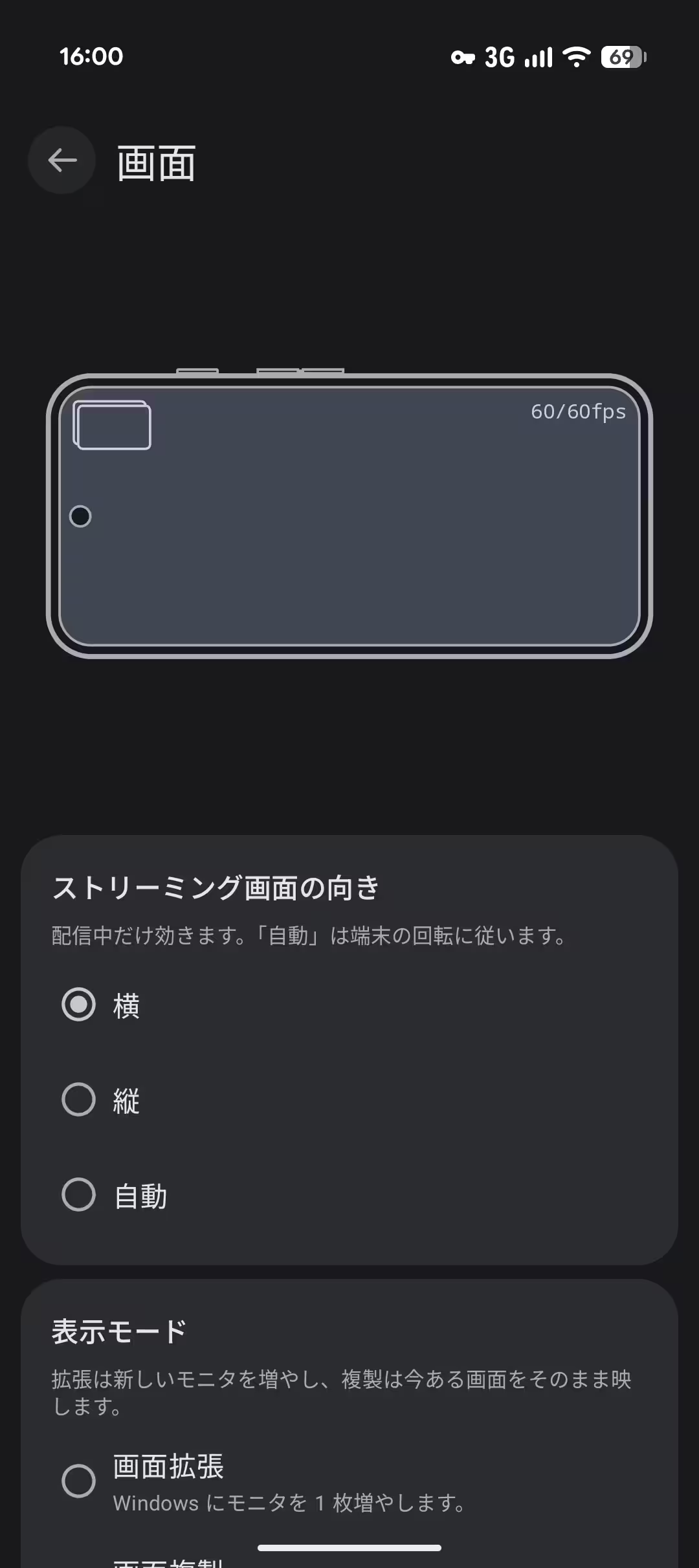
The settings screen of PrismDesk's Android app shows how your settings will look on your device. It's a single Canvas that even draws the real corner radius and camera cutout, and it spins. Here's how it's built, and the implementation around it.
Contents
Introduction
I started working on PrismDesk in earnest around August, and I’m really happy with the settings UI of its Android app, so I want to show it off.
PrismDesk is a tool that lets you extend or duplicate your Windows screen onto an Android device. As I write this, it’s in closed testing.
In this post I’ll focus on the part of the settings UI I’m proudest of, the device preview, and write about how it’s implemented and why.
What is the device preview?
In PrismDesk’s Android app, you can set the screen orientation, extend or duplicate mode, resolution, refresh rate and fps before you connect. But all of these are just numbers and options, and you can’t tell how a change will actually look until you’ve connected. It’s a bad feeling when something doesn’t line up — say, you locked the orientation to portrait but picked a landscape resolution.
So I decided to show how the current settings would look on this device as a single picture on the settings screen. That’s the device preview.
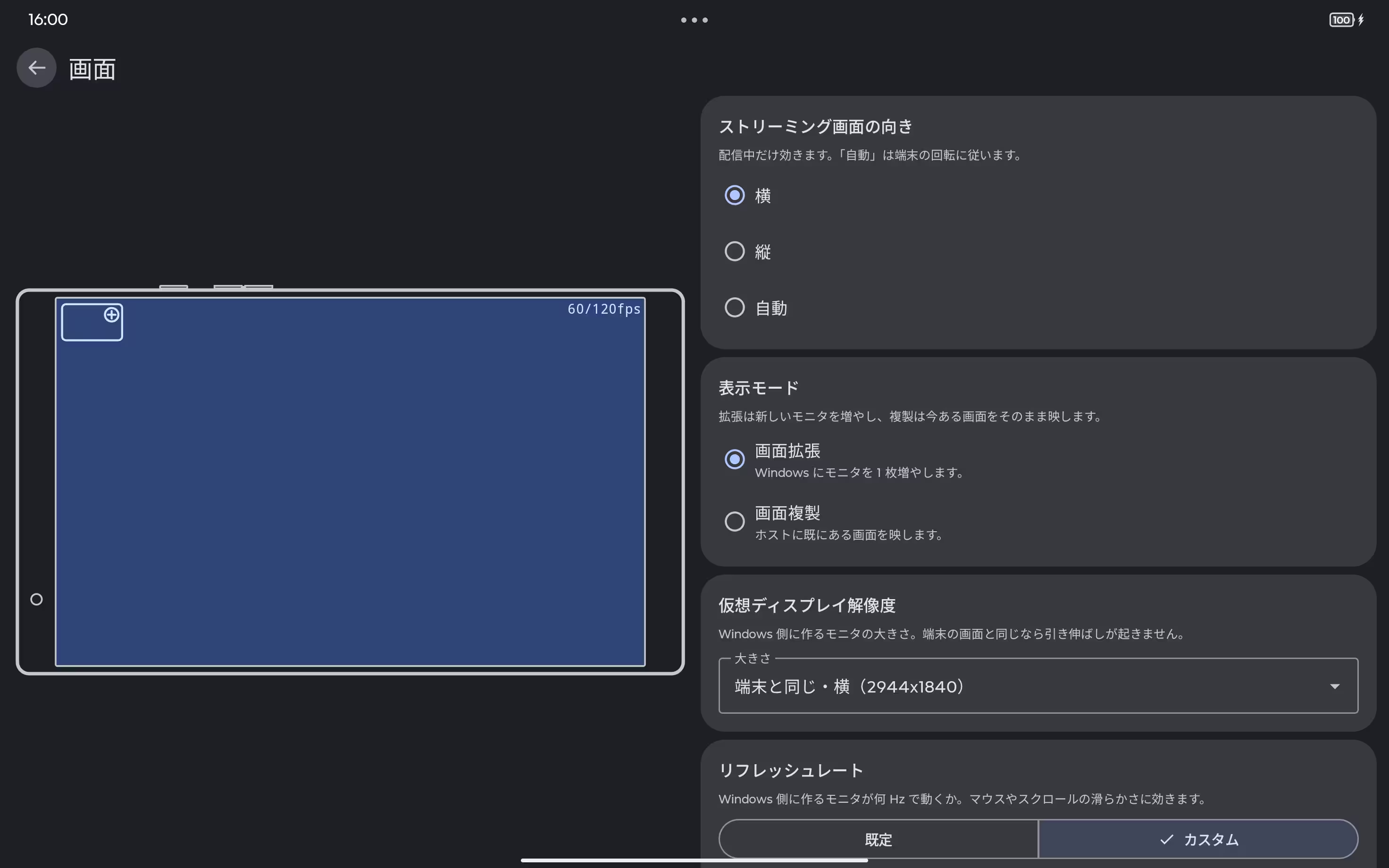
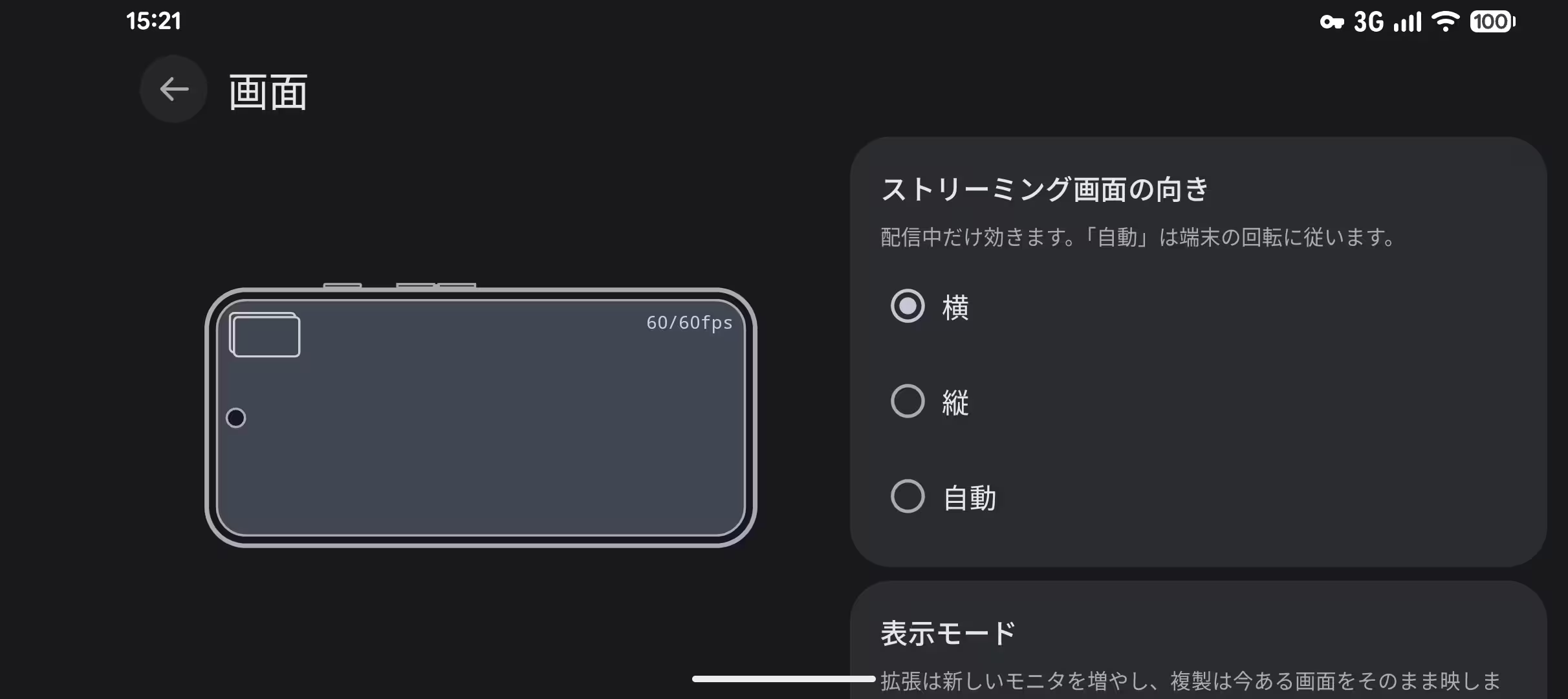
Here’s what gets drawn:
- The outline of the device. The corner radius and the camera cutout are read from the OS, so the shape changes from model to model
- The screen at the resolution you picked, scaled to fit the device’s screen
- The fps and refresh rate at the top right. The fps turns red if it’s higher than the refresh rate
- A symbol for extend / duplicate at the top left
For the cutout, if DisplayCutout.cutoutPath is available I draw that shape as is. If it isn’t, I infer one from boundingRects (if it’s nearly square, I assume it’s a punch-hole camera and draw a circle). For devices with no cutout, I make the top and bottom bezels thicker and draw a camera hole in them. All of this is drawn on a single Compose Canvas, with no child Composables or custom Views.
By the way, the Android 16 tablet I have couldn’t report its cutout, so the shape may well be off in some cases.
The device rotates, but its contents stay level
This is the part I personally like best. When you change the orientation setting, the picture of the device spins over 0.5 seconds. The screen shown inside doesn’t spin with it: it stays level and re-fits itself to the device’s screen.
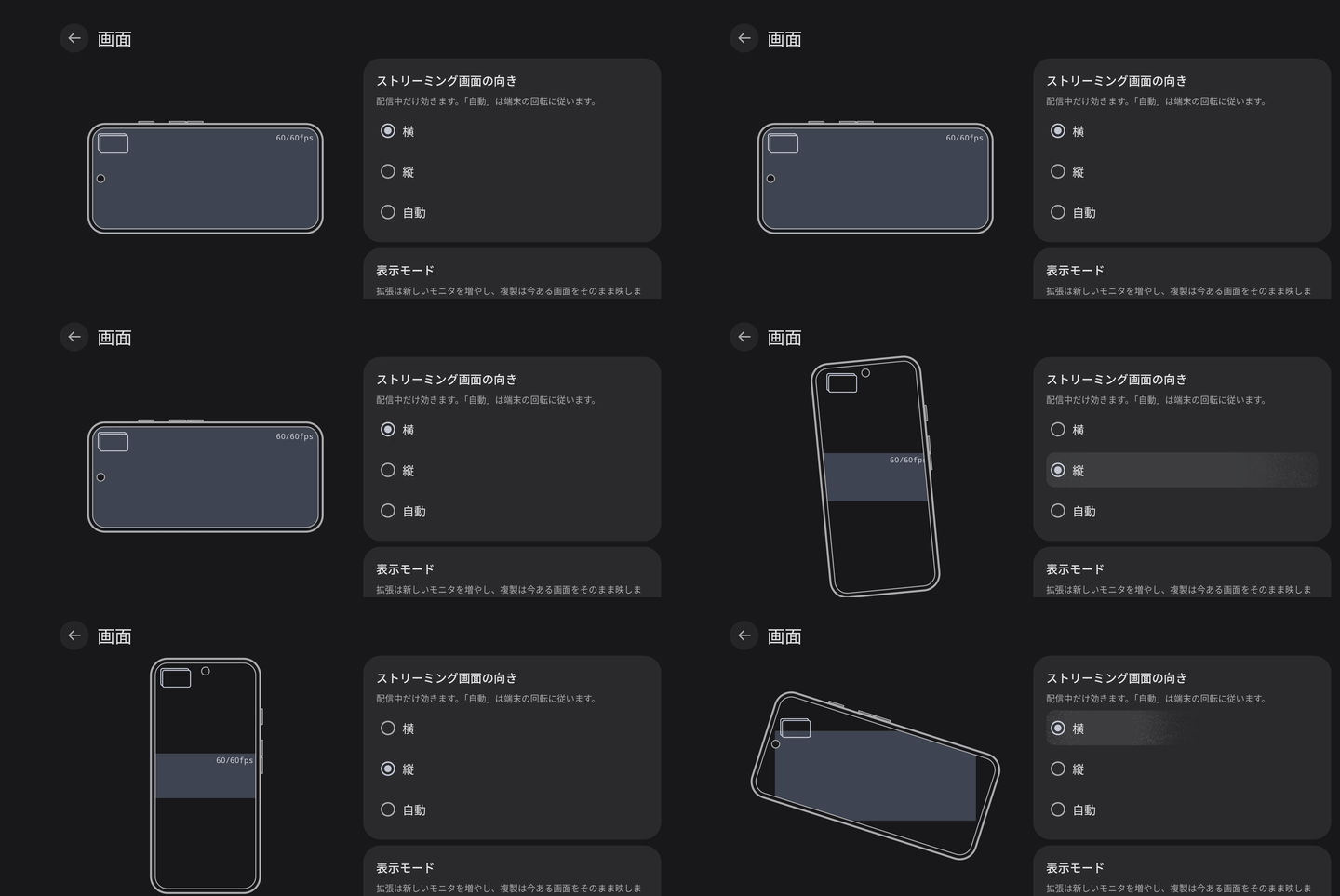
I wanted to draw exactly what you’d really see if you put a landscape screen on a tablet held in portrait. What it does is just nest rotations.
rotate(angle) {                                  // rotate the device
    drawPath(outlinePath)                        // outline
    clipPath(displayPath) {                      // clip to the screen shape
        clipPath(cutoutPath, ClipOp.Difference) { // cut out the camera notch
            rotate(-angle) {                     // undo the rotation for the contents only
                scale(contentScale) {
                    drawRect(/* the screen at the chosen resolution */)
                }
            }
        }
    }
}Because I rotate the contents back after rotating the device, the contents stay level and only the clipping shape turns along with the device. I don’t calculate the margins (the parts that would be black bars on a real connection) at all. If you pick the scale for the contents as min(screen width / resolution width, screen height / resolution height) and fit it in, whatever space is left over naturally becomes the margin.
Rotation, scale and symbol position are all animated with tween(500, EaseOutExpo): they start fast and settle smoothly. I like EaseOutExpo, and this motion just feels right to me.
Keeping text clear of rounded corners
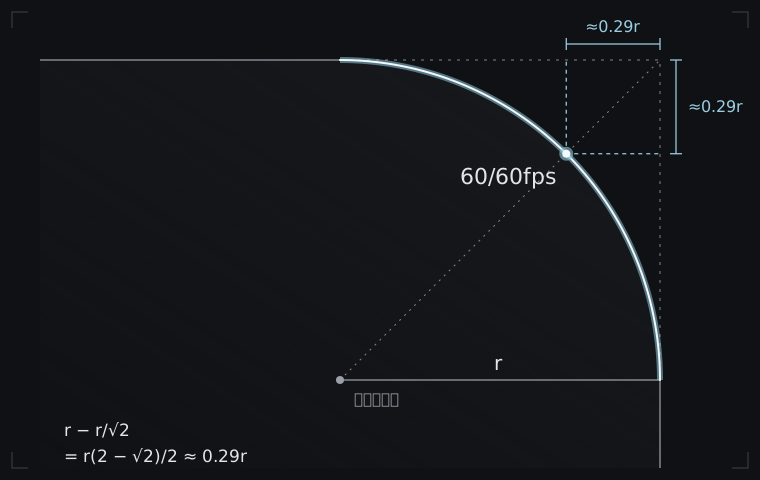
A small detail. The symbol at the top left and the fps at the top right sit in the corners of the screen, but the corners of recent devices are rounded quite a lot, so pushing text right into a corner gets it clipped by the curve. Offsetting it by the corner radius r instead leaves it too far from the corner, and the layout feels loose.
So I offset it by the distance from the corner to the arc, along the 45° diagonal. The center of the rounded corner is at (r, r) from the corner, and the point on the arc along the 45° diagonal is r/√2 from the center on each axis, toward the corner. So the distance from the corner to the arc is r − r/√2 = r(2 − √2)/2 ≈ 0.29r on each axis.
val leftTopMargin = r_tr * (2f - sqrt(2f)) * 0.5fFor r, I just use the radius of the top-right corner as reported by the OS.
It broke when I rotated it
After I’d gone through every item on my real-device checklist, a few bugs turned up around the preview. The cause was simple: during all that checking, I never rotated the device even once.
The first was a bug where the camera cutout stayed at its previous orientation’s position after rotating the device. Two causes were stacked on top of each other, and fixing just one of them didn’t fix it.
- I was reading the cutout from
ViewCompat.getRootWindowInsets, which only fetches the value at that moment and doesn’t subscribe to changes. Rotating the device didn’t trigger a redraw - The
rememberthat builds the cutout shape had no key, so it was only built once, the first time
I fixed it by reading Compose’s WindowInsets.displayCutout once purely to subscribe to it, and putting the rotation and the window size into the remember key.
The second was a bug where, after rotating to portrait, screenHeightDp from LocalConfiguration kept the landscape value, so the preview was drawn at less than half its size. I haven’t identified the root cause of this one. I stopped reading LocalConfiguration and now take the window size from LocalWindowInfo.current.containerSize.
Guarding with grep
Both of these only show up when you rotate a real device, and they’re hard to reproduce in a test. Compose screens can’t be built in JVM tests, and the way they break is “the previous orientation’s picture appears only after rotating”.
So I made the test just read the source code. It strips the comments out of DevicePreview.kt and SettingsScreen.kt, and fails if LocalConfiguration appears. It also fails if containerSize isn’t read (if it only banned things, it would pass even when nothing was read at all).
It looks crude, but what I want to protect is the promise itself, “don’t use this API”, so this is the most reliable and cheapest way to do it.
I even chose how to split the settings screen from the preview
The settings screen has two levels: a list of categories, then a screen for each category. I decided which items go on the same screen based on the values the preview reads. The five of orientation, mode, resolution, refresh rate and fps always go on the same screen, and the preview is shown only on that screen. If the picture and the settings that change it were on separate screens, you couldn’t see the result of a change on the spot.
In the code, too, I don’t mark a category by hand as “this one shows the preview”. Instead, it’s derived: a category that contains all five has the preview.
I redid the placement of the preview twice on a real device.
- Under the category list → the picture didn’t change whichever category you picked, so it just looked like decoration
- In the upper half of the right side → a landscape phone is only about 360dp tall, so the settings were hidden
Now, on a landscape screen, the preview and the settings each take half of the width, and on a portrait screen the preview goes on top, capped at 40% of the height.
You can try it in the browser, too
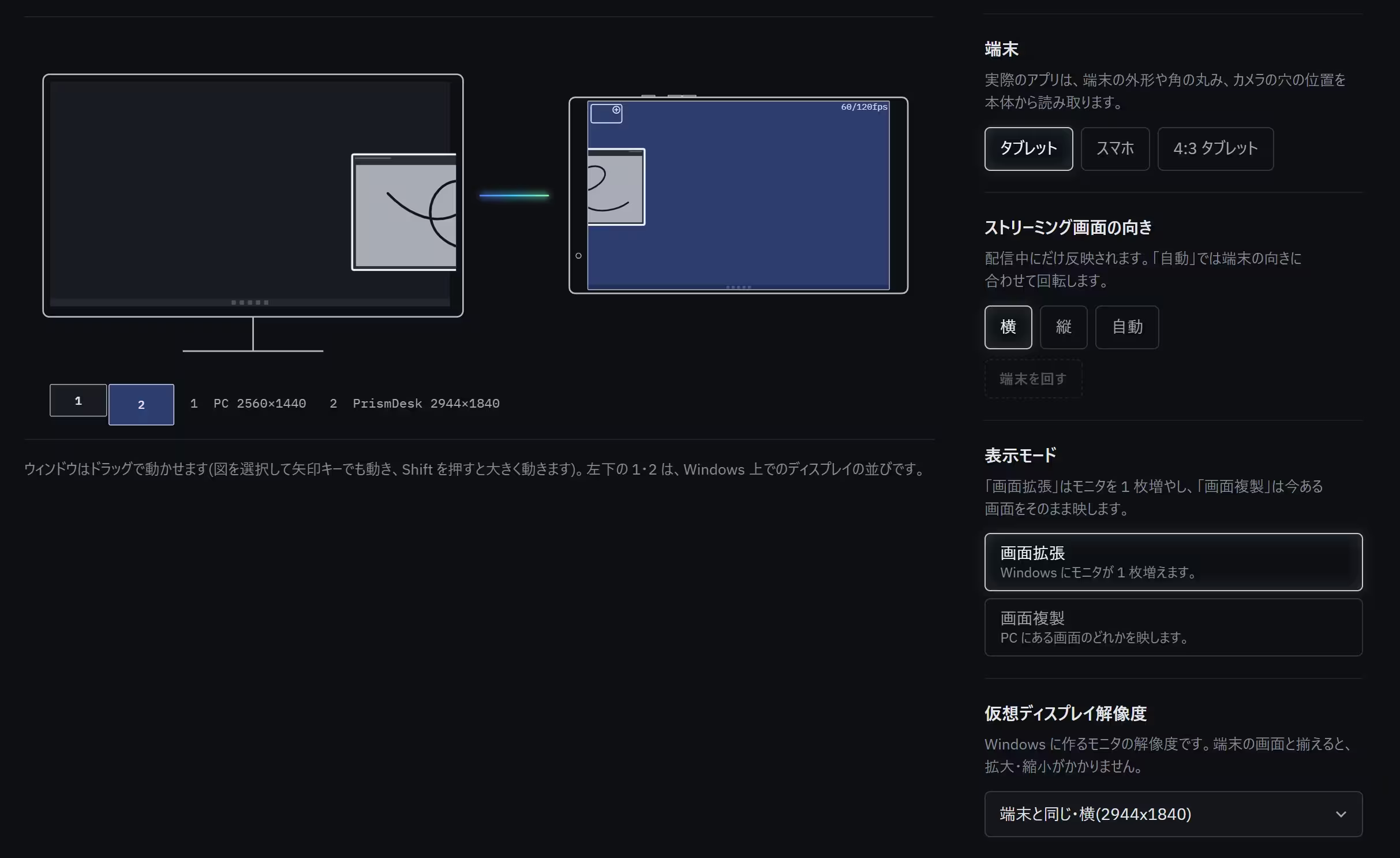
The top page of PrismDesk’s official site has a demo where you can play with this preview in the browser. Because the preview is drawn on a single Canvas, I was able to port it to SVG and plain JavaScript with the same formulas and the same dimensions (a Compose Path becomes the d of an SVG path, and the nested rotations carry over as they are).
It’s a little more capable than the app: it puts a PC monitor next to the device and lets you drag a window from the PC onto the device. A picture of the device alone didn’t make the difference between extend and duplicate clear enough.
Closing
The device preview looks like a simple picture, but making numeric settings visible took work on geometry, animation, state subscription, screen layout and even testing. That’s exactly why I wanted to show it off like this.
PrismDesk is scheduled to launch on 14 October 2026, and the free edition lets you use one device as a second monitor. The Pro edition, which adds HDR and simultaneous connection of multiple devices, is a one-time purchase of US$22. For the builder’s view of what’s inside, see the tool page; the product itself is introduced on the official site. You can also play with the device preview in the site’s demo, so please give it a spin.
PrismDesk — Android tablet as a wireless second monitor for WindowsTurn an Android tablet into a wireless second monitor for Windows 11 — HDR, pen input, zero setup, and measured numbers you can check. Free edition, no account.
Bug reports and feature requests are welcome on GitHub.
GitHub - Asynchronous-0x4C/prismdesk-app: Documentation, issue tracker and releases for PrismDesk - a wireless second monitor for Windows, using an Android tablet.Documentation, issue tracker and releases for PrismDesk - a wireless second monitor for Windows, using an Android tablet. - Asynchronous-0x4C/prismdesk-app